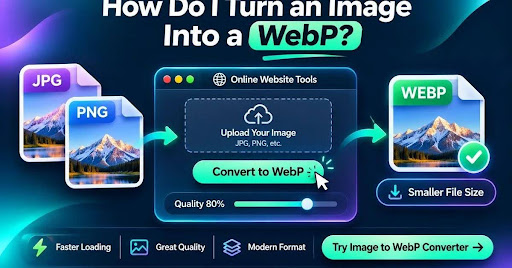
You can turn a JPG or PNG image into WebP with a free online converter. Open the Image to WebP Converter, choose your image, adjust the quality setting, and click Convert to WebP. Compare the original and converted file sizes, check the image preview, then download your new WebP file.
Key Takeaways
- WebP is an image format that can make photos and graphics smaller without a big visible change in quality.
- Online Website Tools converts JPG and PNG files to WebP and lets you adjust the quality level.
- Start with the default 80% quality setting, then compare detail and file size.
- Smaller images can help pages load faster, but changing the format alone doesn’t guarantee better SEO rankings.
- Keep the original image until you’ve checked the downloaded WebP.
A large image can slow down a page, especially on mobile connections. Converting an existing JPG or PNG to WebP is often an easy way to reduce the amount of data the visitor needs to download. You don’t need design software for a straightforward conversion.
How to Convert an Image to WebP Online
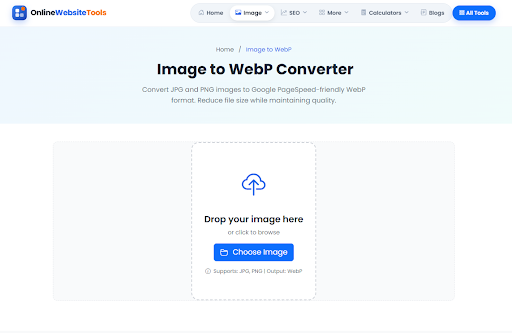
Here’s the simplest method using the free Image to WebP Converter on Online Website Tools.
Step 1: Open the converter
Go to https://onlinewebsitetools.com/image-to-webp-converter/. You’ll see an area to drop an image or choose one from your device.
Step 2: Select a JPG or PNG image
Drag your JPG or PNG into the upload area, or click Choose Image. The tool currently lists JPG and PNG as supported inputs, so use its Image Format Converter if you’re starting with another file type.
Step 3: Set the quality
The converter shows a quality slider set to 80% by default. You can move it toward a smaller file or better quality. Start at 80% rather than pushing quality as low as possible.
Step 4: Convert the file
Click Convert to WebP. The converter prepares the new .webp image and displays the result.
Step 5: Compare and download
Check Original Size, WebP Size, and Saved. Look closely at sharp edges, faces, fine textures, and any text in the image. If it looks good, choose Download WebP.
Ready to try it? Convert Your Image
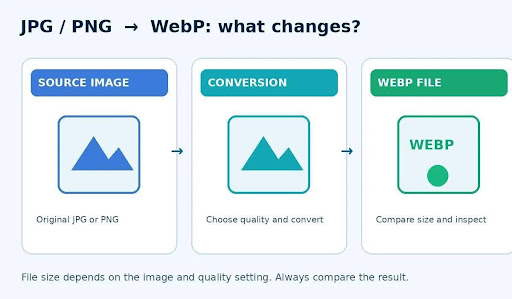
Diagram: choose an image, convert it, and inspect the WebP result
Will converting to WebP improve website speed?
It can. Smaller images mean fewer bytes to transfer, which may reduce loading time. But the full result also depends on image dimensions, lazy loading, caching, the server, and the rest of the page. A 3000-pixel image displayed at 400 pixels wide is still wasteful if it isn’t resized.
What Quality Setting Should You Use for WebP?
There’s no single perfect setting. A practical starting point for regular photographs is around 80%, which is also the default displayed by Online Website Tools. If edges look rough or fine details disappear, raise the quality and test again. If the result still looks excellent but remains large, try a slightly lower setting.
For photographs
Begin around 75–85% as a test range, not a rule. Look at hair, foliage, gradients, and product details at normal viewing size and when zoomed in.
For screenshots, logos and images with text
Fine lines and type may show compression artifacts more quickly. Compare the output carefully. If preserving sharp edges is essential, a lossless workflow may be better, but the featured converter presents a quality slider rather than a clearly labeled lossless option.
Diagram: quality trade-offs for different types of image
Can You Convert PNG to WebP Without Losing Transparency?
The WebP format supports transparent pixels. However, support in the file format doesn’t guarantee that every converter keeps transparency in every workflow. After converting a transparent PNG, inspect the background of the downloaded WebP rather than assuming it’s unchanged. If transparency is missing, try a converter with a documented alpha-preservation option.
How to Check That Your WebP File Actually Worked
- Open the downloaded .webp in a modern browser or image viewer.
- Confirm the picture hasn’t been cropped, stretched, rotated, or blurred.
- Compare file sizes. If the new file is larger, don’t replace the original just for the extension.
- Upload it to a test page and confirm it displays properly on desktop and mobile.
- For important assets, keep a backup of the JPG or PNG source.
5 Common Conversion Problems and Quick Fixes
The WebP looks blurry
Move the quality slider higher and convert again. Also check that the original was sharp enough.
The WebP file is bigger
Try a different quality setting or resize an oversized image first. WebP doesn’t always beat a heavily optimized original.
The image won’t upload
Check that the input is JPG or PNG. If it’s HEIC, GIF, or another format, convert it into a supported input first.
Transparency disappears
Inspect the actual output and use a converter that explicitly supports preserving transparent pixels if needed.
The image appears broken on a website
Check the file path, upload process, MIME type and caching. Also confirm that the browser or platform supports WebP.
Does WebP Help SEO?
WebP can contribute to image optimization by lowering download size, which may help performance. But Google doesn’t rank a page higher just because its images end in .webp. Use appropriate dimensions, helpful alt text, descriptive filenames, and properly implemented responsive images alongside compression.
If you’ve already converted your images but the website still feels slow, use the Image Compressor or Image Resizer to review other bottlenecks. And if your CMS automatically generates multiple image sizes, confirm that it’s serving the right one for each screen.
Need to convert a photo before uploading it? Try the Free WebP Converter
Frequently Asked Questions
How do I change a JPG into a WebP?
Upload your JPG to an image-to-WebP converter, choose a quality level, run the conversion, and download the .webp result. Compare the final image with the original before using it on your website.
Can I convert a PNG image to WebP?
Yes. Online Website Tools accepts PNG files as input. WebP itself supports transparency, but check the output if transparent backgrounds matter to your design.
Is WebP better than JPG?
For many website photos, WebP can offer comparable appearance at a smaller size. Still, the result depends on the image and encoder settings, so compare your own files rather than relying on a fixed saving.
Can I turn an image into WebP for free?
Yes. The Image to WebP Converter on Online Website Tools is free and doesn’t require registration. Choose a JPG or PNG, convert it, and download the result.
Does WebP reduce image quality?
It depends on the encoding method and quality setting. Lossy WebP can remove detail to shrink the file, while lossless WebP preserves image data. Check fine text and edges before publishing.
Can I open WebP on my phone?
Modern browsers widely support WebP. Some older apps and editing programs may not, so keep your original file if you need compatibility with a particular workflow.
How much smaller will my image become?
There’s no guaranteed percentage. Photo complexity, starting format, original compression and the quality setting all affect the result. Check the converter’s original-size and WebP-size figures for your own image.
Can I rename .jpg to .webp to convert it?
No. Changing a filename extension doesn’t convert the underlying image data. You need to re-encode the picture using a converter or image editor.
Is WebP good for WordPress?
Modern WordPress installations support WebP uploads, though hosting and plugin setups can differ. Test the image on your own site, and make sure your theme serves suitable sizes.
Should I delete my original JPG or PNG?
It’s better to keep the source, particularly for product images and brand graphics. You might need it later for editing, a different export setting, or software that doesn’t handle WebP well.
Final Thoughts
If you need a WebP file, you don’t have to install anything complicated. Upload a JPG or PNG, try the quality setting, compare the result, and download it. The best conversion is the one that makes the image lighter without making it look worse. A few seconds spent checking the preview can save a lot of rework later.
Make your first conversion with the Image to WebP Converter