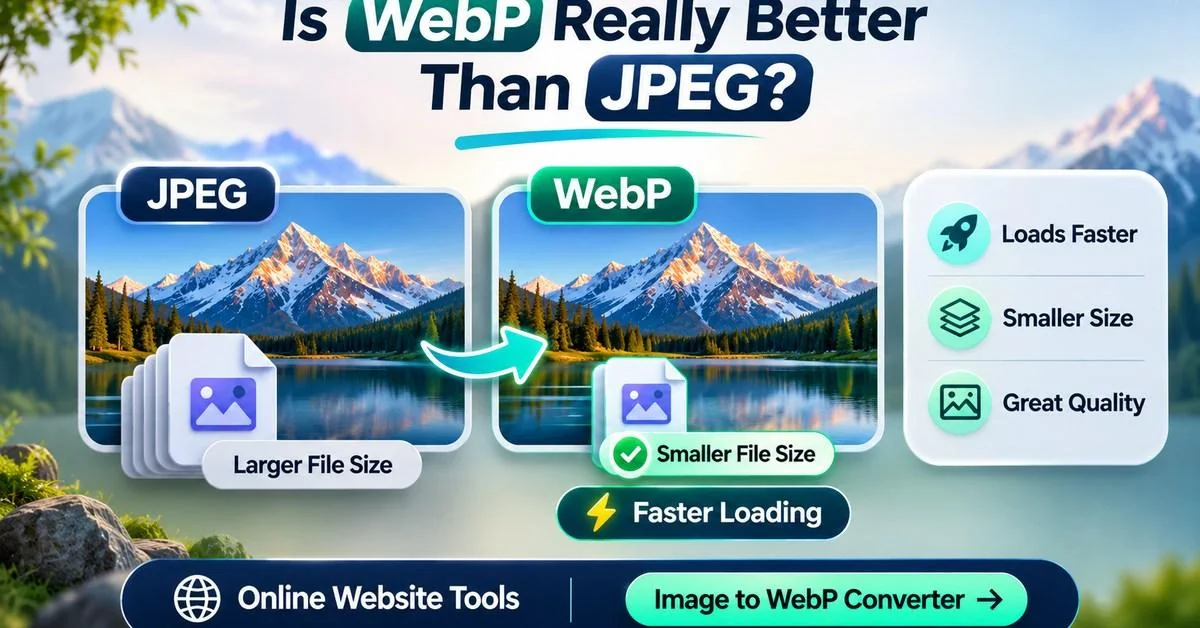
Yes, WebP is usually better than JPEG for website images because it often delivers similar visual quality with smaller file sizes, but JPEG still makes sense for older software, wider compatibility, and some editing workflows. The best format depends on where you’ll use the image and how well it compresses.
Key Takeaways
- WebP generally makes website images smaller at comparable visual quality.
- Google’s WebP compression study found files about 25–34% smaller than JPEG at a comparable quality metric. That’s an average, not a promise for every image.
- JPEG is still useful when software compatibility matters more than a few kilobytes.
- WebP supports transparency and animation; standard JPEG doesn’t.
- Converting a low-quality JPEG to WebP won’t bring back lost detail.
- Smaller images may improve loading, but WebP alone doesn’t guarantee better SEO rankings.
WebP vs JPEG: What’s the Actual Difference?
JPEG (often written JPG) has been a familiar photo format for decades. Almost every device and editing program can open it. WebP is designed for the web, where images need to look good without taking too long to download. Both can compress photographs, but WebP generally uses fewer bytes for a similar-looking result.
| Feature | WebP | JPEG |
|---|---|---|
| File size | Usually smaller | Often larger at similar quality |
| Photo quality | Good at sensible settings | Good at sensible settings |
| Transparency | Yes | No |
| Animation | Yes | No |
| Modern browsers | Widely supported | Widely supported |
| Older software compatibility | Can be inconsistent | Usually excellent |
| Best fit | Web publishing | Sharing and legacy workflows |
Is WebP Smaller Than JPEG?
Usually, yes. In its published compression study, Google measured WebP at roughly 25–34% smaller than JPEG when images were compared at similar structural quality. This is a historical benchmark using particular encoders and test images, not a guarantee for every modern export. Results change with the photo, encoder, quality setting and starting file. Already-optimized JPEGs may see a smaller improvement.
What the Numbers Look Like in Practice
Imagine a JPEG blog photo that weighs 400 KB. A WebP version might come out at 280 KB, saving 120 KB, or 30%. This is an illustrative calculation, not a measured result from our converter. The only reliable way to know your savings is to convert your actual image and compare the output.
Equal Quality Settings Don’t Mean Equal Quality
A quality value of 80 is an encoder setting, not a universal visual-quality score. JPEG at 80 and WebP at 80 can look different. For a useful comparison, keep the pixel dimensions identical and adjust each export until both look acceptable at the intended display size. Then compare the file sizes. Don’t attribute all the savings to the format if one export is smaller because it was resized or visibly degraded.
Does WebP Look Better Than JPEG?
Not automatically. At a similar file size, WebP can often preserve more detail. At aggressive compression settings, both formats can show artifacts, such as blotchy backgrounds or fuzzy edges. Don’t judge the file extension alone. Open both versions at the same dimensions and check faces, fine textures, lettering and areas with smooth color.
Can WebP Lose Quality?
Yes. Lossy WebP throws away some image information to reduce size. WebP also supports lossless compression, but not every converter exposes a lossless switch. If you’re converting a JPEG, the original JPEG has already lost some detail. Changing it to WebP won’t restore that information. A lossless WebP export can preserve the decoded source pixels, but it cannot recover detail discarded before the conversion.
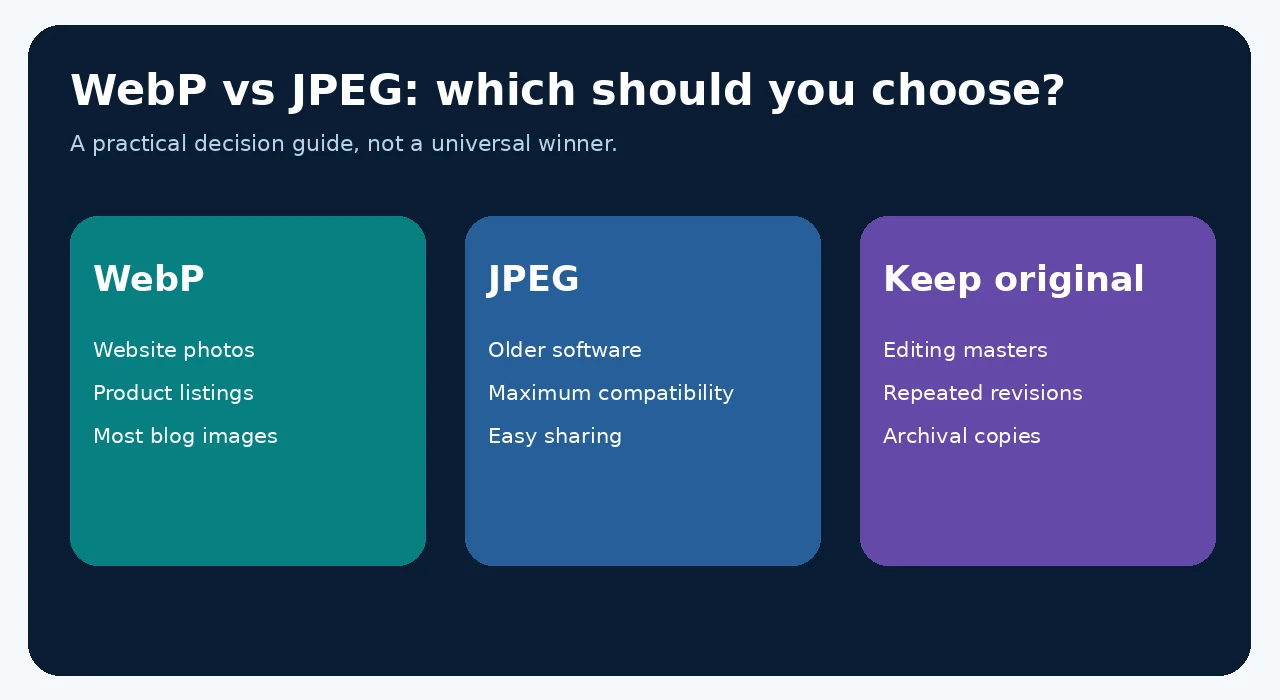
When Is JPEG Still the Better Choice?
JPEG is a sensible option when you’re sending photos to someone using an older application, importing assets into a legacy system, or working with a publishing workflow that explicitly requests JPG files. It’s also useful as a compatibility fallback alongside WebP. Keep your highest-quality source file for future edits instead of repeatedly re-exporting an already-compressed image.
Does WebP Improve Website Speed and SEO?
A smaller image takes less data to transfer. That can help a page load faster, particularly on mobile connections. Images are only one part of performance, though. Oversized dimensions, lazy-loading choices, caching, server speed and layout can still slow things down. Google doesn’t give a page a ranking boost simply because its images end in .webp. Focus on the actual user experience and measured performance.
Should You Convert Every JPEG on Your Website?
No. Start with large hero images, product photos and blog images that visitors download often. Compare before and after, especially if the JPEG is already very small. Keep originals, check that the new images display properly, and confirm your caching and image URLs work after replacing files. Supply appropriately sized images for different screens, include width and height to reserve layout space, and avoid delaying an important above-the-fold image with lazy loading.
How to Compare WebP and JPEG Using Online Website Tools
You can test your own files using the free Image to WebP Converter. Compare the actual output rather than assuming every image will shrink by the same percentage.
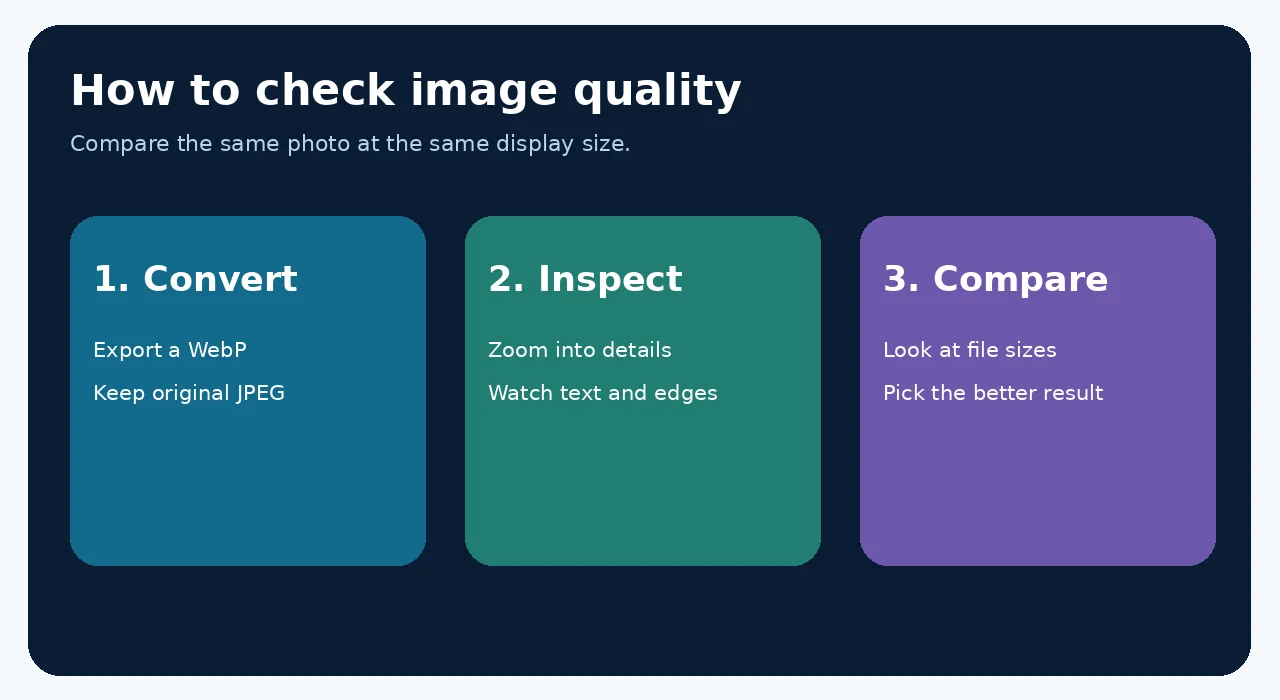
- Open the Image to WebP Converter and select your JPEG image.
- Start around quality 80 if the quality control is available, then convert the image.
- Compare the original size with the WebP size reported by the tool.
- Download the WebP file, then open both images at the same display size.
- Look closely at the details. If the WebP looks worse than you’d accept, raise the quality and try again.
Compare your image before changing the live website: Try Image to WebP Converter.
WebP vs JPEG for Different Image Types
Blog and news photos
WebP is often the better publishing format because it can reduce downloads without obvious visual changes.
Ecommerce product photos
WebP is usually a strong choice, but zoom in on product textures, labels and color accuracy before replacing JPEGs.
Screenshots and graphics with text
Don’t assume lossy WebP wins. Sharp edges may look better with lossless WebP or PNG; SVG is often ideal for diagrams and icons.
Photos for email or document sharing
JPEG can be easier when recipients use older applications that don’t handle WebP consistently.
Frequently Asked Questions
Is WebP better quality than JPEG?
It can deliver similar or better visual quality at a smaller file size, but the result depends on compression settings. Compare the same photo at equal dimensions and look closely at areas with fine detail.
Is WebP always smaller than JPG?
No. It’s often smaller, but not always. A heavily optimized JPEG may already be efficient, while a high-quality WebP export can be larger. Convert and compare before replacing existing images.
Does WebP reduce image quality?
Lossy WebP can reduce quality, just like JPEG. At sensible settings the change may be hard to spot. WebP also supports lossless compression, which preserves source pixels but may create a larger file.
Is WebP good for SEO?
WebP can reduce page weight and help loading performance, which matters for visitors. The format itself isn’t a ranking shortcut. Correct sizing, useful alt text, caching and a fast page still matter.
Does Google support WebP images?
Yes. Google Search supports WebP, and modern mainstream browsers can display it. Older software or uncommon workflows may still prefer JPEG, so compatibility is worth checking.
Should I use WebP or JPEG for WordPress?
WebP is often a good choice for WordPress blog and product photos if your theme and plugins handle it correctly. Keep original uploads where needed and review thumbnails, galleries and social previews.
Can I convert JPEG to WebP without losing quality?
A lossless export can preserve the pixels decoded from your JPEG, but it cannot restore information already lost. For a smaller lossy WebP, start with your best source file, choose a suitable quality setting and inspect the result.
Is JPEG becoming obsolete?
No. JPEG remains widely supported and useful for photography and sharing. WebP is often more efficient for websites, but different formats can coexist in a sensible image workflow.
Final Thoughts
For most website photos, WebP is worth trying. It often gives you a smaller image without an obvious drop in quality. JPEG is still reliable when compatibility and simple sharing matter more. Compare real files, keep your originals and choose the result that looks good and loads efficiently.
Want to see the difference on your own photos? Try Image to WebP Converter.