
To read a robots.txt file, start by identifying the crawler group in each User-agent section, then read the Allow, Disallow, and Sitemap lines under that group. After that, compare the URL path you want to test with the listed rules. The crawler uses the most specific matching rule to decide whether the URL can be crawled.
Key Takeaways
- A robots.txt file lives at the root of a site, such as
https://example.com/robots.txt. - User-agent tells you which crawler a rule block applies to.
- Disallow blocks crawling of a path, while Allow can open a more specific path inside a blocked folder.
- Rules are read within the matching crawler group, not across the whole file.
- When multiple rules match, the most specific path usually wins.
- Wildcards like
*and end markers like$can make rules more precise. - robots.txt controls crawling, not guaranteed removal from search results.
- Use Online Website Tools’ Robots.txt Tester to check if a real URL is allowed or blocked before changing your live file.
Why This Topic Matters
Many website owners can open a robots.txt file but still do not know how to interpret it correctly. They see lines like User-agent, Disallow, or Allow, but they are not sure which crawler is affected, which URLs match, or why an important page is blocked. This is where mistakes happen. One wrong rule can stop Googlebot from crawling product pages, blog posts, images, or even your entire site.
This guide explains how to read a robots.txt file in depth. It covers the exact structure of the file, what each directive means, how crawlers choose rules, how matching works, and how to test rules safely. It also shows how to use the Online Website Tools Robots.txt Tester to validate what your file is actually doing.
What Is a robots.txt File?
A robots.txt file is a plain text file placed in the root of a website. Search engine crawlers such as Googlebot and Bingbot request this file before crawling the site. The file tells crawlers which URLs or folders they may crawl and which they should avoid. Google explains that robots.txt is mainly for crawl management, not as a secure way to hide content from search results.
Example location: https://example.com/robots.txt
Important note: the file must be at the host root. A file at /folder/robots.txt is not the main robots.txt for the site.
The Anatomy of a robots.txt File
A robots.txt file is made of one or more rule groups. Each group starts with a User-agent line, followed by one or more directives for that crawler.
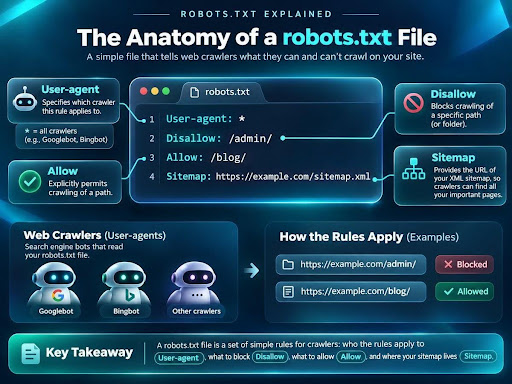
Diagram: The main parts of a robots.txt file
User-agent
User-agent identifies the crawler the rules apply to. An asterisk (*) means all crawlers. A specific crawler name, such as Googlebot, means only that crawler should follow the block of rules.
Disallow
Disallow tells the crawler not to request URLs that match the path. For example, Disallow: /private/ tells the crawler not to crawl any URL inside the /private/ folder.
Allow
Allow explicitly permits crawling for a more specific path. This is especially useful when most of a folder is blocked but one important section inside it should remain crawlable.
Sitemap
Sitemap provides the location of your XML sitemap. It does not block or allow crawling by itself, but it helps crawlers discover your important URLs faster.
Example robots.txt File Explained Line by Line
User-agent: *
Disallow: /wp-admin/
Allow: /wp-admin/admin-ajax.php
Disallow: /private/
Sitemap: https://example.com/sitemap.xml
How to read this example
User-agent: *means the following rules apply to all crawlers unless a crawler has a more specific matching group elsewhere in the file.Disallow: /wp-admin/blocks crawling of the WordPress admin folder.Allow: /wp-admin/admin-ajax.phpcreates an exception. Even though/wp-admin/is blocked, this specific file may still be crawled.Disallow: /private/blocks crawling of everything under/private/.Sitemap: https://example.com/sitemap.xmltells crawlers where your sitemap lives.
How to Read a robots.txt File Step by Step
1) Find the user-agent group that matters
If you want to know what Googlebot can crawl, find the User-agent: Googlebot group first. If there is no specific group for Googlebot, then Googlebot may fall back to the general User-agent: * group.
2) Read only the rules in that group
Do not mix rules from unrelated groups. A Bingbot block does not apply to Googlebot, and a GPTBot block does not automatically apply to every other crawler.
3) Match the URL path against the rules
Look only at the path after the domain. For example, in https://example.com/blog/post-1, the path is /blog/post-1. Compare that path with every Allow and Disallow rule in the group.
4) Check for the most specific match
If more than one rule matches, the more specific match usually wins. In practical terms, a longer and more precise matching path has priority over a shorter general one.
5) Decide the outcome
If the winning rule is Allow, the URL can be crawled. If the winning rule is Disallow, the URL is blocked from crawling.
How Crawlers Interpret Rules for a Real URL
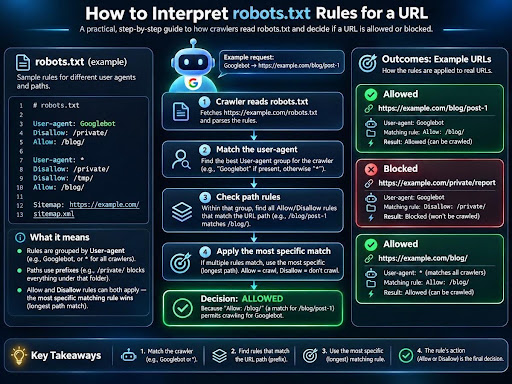
Diagram: How a crawler decides whether a URL is allowed or blocked
Let’s say your file contains a Googlebot group and a general group. A crawler does not just scan the whole file randomly. It first chooses the best matching user-agent group, then compares the requested URL path with the paths in that group. That process is why reading robots.txt correctly means understanding both the crawler and the path.
How to Read Advanced robots.txt Patterns
Wildcard *
The asterisk can match any sequence of characters. Example: Disallow: /*?sort= blocks URLs that contain ?sort= anywhere in the path or query string.
End marker $
The dollar sign marks the end of the URL. Example: Disallow: /*.pdf$ blocks URLs that end in .pdf.
Case sensitivity
Paths are case-sensitive on many servers and in robots matching. /Admin/ and /admin/ may not behave the same way.
Trailing slash awareness
A folder-like rule such as /private/ is broader than /private. Pay attention to the exact characters used in the rule.
Comments
Lines beginning with # are comments for humans. They do not affect crawler behavior.
6 Common robots.txt Reading Mistakes
- Thinking robots.txt removes pages from Google. It mainly controls crawling, not guaranteed indexing removal.
- Reading all groups together instead of reading only the matching crawler group.
- Ignoring Allow rules that override a broader Disallow rule.
- Testing only the file syntax but not testing real URLs.
- Using robots.txt to block pages that actually need a noindex directive or password protection.
- Forgetting that each subdomain needs its own robots.txt file.
How to Read and Test robots.txt with Online Website Tools
The easiest way to move from theory to action is to test the exact URLs you care about. The Robots.txt Tester on Online Website Tools lets you fetch a live robots.txt file, validate it, test a URL or path, choose different crawlers, and even edit the file temporarily to retest changes before you upload anything to your site.
Try it here: https://onlinewebsitetools.com/robots-txt-tester/
You can use it to:
- See which rule group applies to Googlebot, Bingbot, GPTBot, and other crawlers.
- Test whether a specific URL is allowed or blocked.
- Spot syntax issues and confusing rule patterns.
- Experiment with edits without changing the live file on your site.
Practical Examples of Reading robots.txt
Example 1: Reading a blocked admin folder
If you see Disallow: /admin/ under User-agent: *, then every crawler using that group is told not to crawl any URL beginning with /admin/.
Example 2: Reading an exception inside a blocked folder
If the file says Disallow: /images/ but also says Allow: /images/logo.png, then the logo file can still be crawled because it has a more specific allowed path.
Example 3: Reading a crawler-specific block
If the file contains User-agent: GPTBot followed by Disallow: /, that means GPTBot is blocked from crawling the entire site, while Googlebot may still be allowed if its own group or the general group allows crawling.
FAQs
How do I know which user-agent group applies?
Start by checking whether the crawler has a named User-agent group. If it does, read that group first. If not, read the general User-agent: * group.
What does Disallow: / mean?
It means the crawler is blocked from crawling the entire site for that matching user-agent group.
Can Allow override Disallow?
Yes. If a more specific Allow rule matches the URL, it can override a broader Disallow rule.
Does robots.txt stop indexing?
Not reliably. A blocked page can still appear in search results if search engines discover the URL elsewhere. Use noindex or password protection when needed.
What does Sitemap do in robots.txt?
It tells crawlers where your XML sitemap is located. It helps discovery but does not act as a crawl rule.
Can I use robots.txt for AI crawlers?
Yes. Many site owners now add crawler-specific groups for GPTBot, ClaudeBot, PerplexityBot, and other AI crawlers.
Why should I test URLs instead of just reading the file manually?
Manual reading is useful, but testing removes guesswork. A tester can show the actual result for a specific URL and crawler combination.
Does every subdomain need a separate robots.txt file?
Yes. blog.example.com and www.example.com are treated as separate hosts and need their own robots.txt files if you want different crawl rules.
Final Thoughts
Reading a robots.txt file is not difficult once you know the logic. First identify the crawler, then the rule group, then the matching path, and finally the most specific rule. If you do that consistently, you can spot crawl problems before they harm rankings, waste crawl budget, or hide important pages from search engines.
For day-to-day SEO work, pair manual understanding with practical testing. That is the best way to avoid mistakes and confirm how crawlers interpret your rules in the real world.