To check if robots.txt is working, open yoursite.com/robots.txt, confirm the file loads, and test important URLs against Googlebot rules. Next, check Google Search Console for fetch errors and inspect a live page. A working robots.txt file must be accessible, correctly formatted, and apply the crawl rules you intended.
Key Takeaways
- Open your root
/robots.txtURL first. A readable file alone does not prove its rules are correct. - Use a robots.txt tester to check specific page paths for Googlebot, Bingbot, or selected AI crawlers.
- Confirm Google’s last robots.txt fetch in Search Console, then inspect a priority page.
- A 404 robots.txt response is not automatically a problem; a server error is more concerning.
- Robots.txt controls crawling, not guaranteed removal from search results.
What Does It Mean for robots.txt to Be Working?
A working robots.txt file is reachable at the correct root URL, uses valid directives, and produces the intended allow or disallow result for the crawler and page you are testing. For SEO, it must not unintentionally block pages you want Google to crawl. A valid file is only one part of crawlability: server access, login barriers, HTTP errors, and page-level indexing controls also matter.
How to Check If robots.txt Is Working in 5 Steps
Step 1: Find and open your robots.txt file
Visit https://yourdomain.com/robots.txt in an incognito/private browser window. Replace yourdomain.com with your real host. A plain-text file may display user-agent, Allow, Disallow, and Sitemap instructions. If you use www, subdomains, or different protocols, check the exact host and protocol used by the pages in question.
If the file is missing, do not assume your entire website is blocked. Google generally treats a missing robots.txt (404) as no crawling restrictions. If the URL shows an access error or a server error, investigate your host, CDN, firewall, and site settings.
Step 2: Check file status and syntax
A normal reachable robots.txt file should return a successful response, typically HTTP 200, and contain plain-text directives. Look for typographical errors, rules outside a User-agent group, incorrect paths, and accidental sitewide blocks. Google may ignore rules it cannot parse.
User-agent: *
Disallow: /private/
Allow: /public/
Sitemap: https://yourdomain.com/sitemap.xml
In this illustrative example, compliant crawlers are told not to fetch URLs under /private/, while /public/ is allowed. The Sitemap entry is a discovery hint, not a crawl permission rule.
Step 3: Test an actual page with the free Robots.txt Tester
Instead of guessing how rules apply, test a real URL. Open the Online Website Tools Robots.txt Tester and enter your domain. The tool can fetch the live robots.txt, identify syntax issues, and test a URL or path for selected crawlers. You can also edit a draft and retest without changing the live website.
- Open https://onlinewebsitetools.com/robots-txt-tester/.
- Enter your website domain and choose Fetch robots.txt.
- Enter a full URL or relative path, such as
/blog/seo-guide/. - Select Googlebot and run the test; repeat for Bingbot or another relevant crawler.
- Check whether the result is Allowed or Blocked, then review the matching rule.
Test robots.txt free: https://onlinewebsitetools.com/robots-txt-tester/
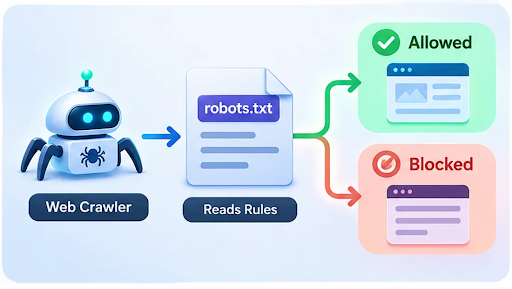
Diagram: A crawler consults robots.txt before choosing whether it may fetch a path
Step 4: Check the robots.txt report in Google Search Console
If you own or manage the website, open the robots.txt report in Google Search Console. This report shows robots.txt files Google discovered, their latest fetch status, the last check time, and parsing warnings or errors. A “Fetched” status indicates Google obtained the file; check its issues and the content of its last fetched version as well.
Google’s report is available for domain-level and host-level properties that qualify, not path-scoped URL-prefix properties. If you recently corrected a major block, the report also provides an option to request a robots.txt recrawl. It does not guarantee an immediate recrawl of individual pages.
Official Google Search Console robots.txt report: https://support.google.com/webmasters/answer/6062598?hl=en
Step 5: Inspect a page and confirm actual crawl access
Use Search Console’s URL Inspection tool for a page that should be crawlable. Inspect its indexing information and use the live test to see whether Google can access it now. Distinguish “blocked by robots.txt” from other issues such as a page returning 404, a noindex directive, or a server restriction.
Important: a robots.txt tester checks the rule outcome. It cannot prove that a firewall, CDN, authentication layer, or hosting server will allow every real crawler request. If Search Console shows a different outcome, investigate the live URL, server logs, and access-control settings.
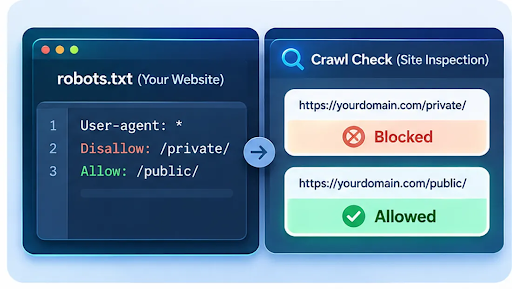
Example: Test two URL paths against the same robots.txt file and compare results
How to Tell If robots.txt Is Blocking Googlebot
Look for a disallow rule that matches the affected URL in the relevant Googlebot rule group. For example:
User-agent: *
Disallow: /
This example tells compliant crawlers not to crawl any path on the site. It can be appropriate for a temporary staging environment, but can seriously affect a live public website if left there by mistake.
By contrast, Disallow: /checkout/ targets a particular section. Check the exact case, path, and crawler because /Products/ and /products/ can be treated differently. More specific matching rules can change the final result, so test instead of relying on a quick glance.
robots.txt Check Results: What They Mean
| Result | Meaning | Next action |
|---|---|---|
| 200 and readable | File is accessible, but rules still require testing | Validate directives and test priority URLs |
| 404 Not Found | No file found; generally no robots.txt crawl restrictions for Google | Create a file only if restrictions are needed |
| 403 or other 4xx | Access may be restricted; treatment depends on response | Review security rules and server behavior |
| 5xx error | Server-side issue can delay Google crawling | Restore service, recheck in Search Console |
| Allowed in tester | Robots.txt permits that crawler/path combination | Check the live URL and indexing settings |
| Blocked in tester | A matching rule disallows that crawler/path combination | Decide if the block is intentional |
Common robots.txt Problems and How to Fix Them
Accidentally blocking your entire website
Remove an unintended Disallow: / for user agents that need to crawl your live pages. Retest the homepage and a few key internal URLs before publishing the change.
Editing the wrong robots.txt file
Robots rules are origin-specific. A file for https://example.com/ does not automatically control https://shop.example.com/. Check the exact protocol, host, and port involved.
Assuming a blocked page cannot appear in Google
A blocked URL can sometimes appear in search results based on external links even if Google cannot crawl its content. If your objective is to prevent indexing, use a suitable noindex directive on a crawlable page or protect truly private content with authentication. Do not place noindex on a page while blocking Google from seeing it in robots.txt.
Using unsupported or misleading directives
Google does not support noindex inside robots.txt or Crawl-delay as a Googlebot directive. Use supported Allow and Disallow rules for crawl management and other appropriate methods for indexing or crawl-rate issues.
Ignoring non-robots.txt crawl barriers
A rule can say Allowed while the page still returns 403, requires login, has a CDN bot challenge, or fails to load. Run a page crawl check and inspect server responses rather than treating the robots.txt result as a complete crawl audit.
When Should You Test robots.txt Again?
- After a website launch, migration, subdomain change, or staging-to-live deployment.
- After an SEO plugin, CMS, firewall, or CDN configuration change.
- After editing Allow or Disallow rules or adding new sections.
- When Search Console reports robots.txt fetch issues or blocked URLs.
- Before deploying rules intended to manage AI or other specialized crawlers.
Frequently Asked Questions
How do I know if my robots.txt file is valid?
Check that the file is accessible at the root /robots.txt URL and that a validator can interpret its directives. Then test actual URLs against the intended crawler. Google Search Console can identify fetch and parsing issues from Google’s perspective.
How can I test robots.txt for a specific URL?
Enter the domain in a robots.txt tester, add the full URL or path, select the crawler, and run the test. Check the allowed or blocked result and the rule responsible. Repeat for important templates such as product, category, and article pages.
How do I check if Googlebot is blocked?
Test the URL with Googlebot selected in the Robots.txt Tester, then inspect the page in Google Search Console. Check for sitewide Disallow rules, more specific groups, and additional barriers such as a firewall or server response error.
Does a website need a robots.txt file?
No. A site can operate without a robots.txt file. Google generally treats a missing file as allowing crawling, although other technical conditions may still stop access. Add a file when you have a genuine reason to manage crawler access.
What does a 404 robots.txt error mean?
It usually means there is no robots.txt file at that location. For Google, a missing robots.txt normally means there are no restrictions from that file. Confirm the hostname and consider creating one only when rules are necessary.
Can robots.txt stop a page from being indexed?
Not reliably. Robots.txt controls crawling, and Google can sometimes index a blocked URL discovered elsewhere. To exclude a public page from Google, use a noindex directive that Google can crawl. Use authentication for sensitive content.
How often does Google check robots.txt?
Google periodically refetches robots.txt and may cache the file, so an update is not always reflected instantly. Search Console displays Google’s last reported fetch and lets site owners request a recrawl in important cases.
Can I test AI crawler rules in robots.txt?
Yes. The Online Website Tools Robots.txt Tester includes options for AI crawlers such as GPTBot and ClaudeBot. Test each named user agent separately, since different crawlers may have different groups. Remember that compliance depends on each crawler.
Final Thoughts
The easiest way to check if robots.txt is working is to combine a browser check, a URL-specific rule test, and Google Search Console verification. If all three agree and your important pages remain crawlable, you have stronger evidence that the rules are doing what you intended. Test again whenever you change your crawling configuration.
Check robots.txt now: Open the Robots.txt Tester
Related Free SEO Tools on Online Website Tools
Sources and Editorial Verification
- Google: Create and submit robots.txthttps://developers.google.com/crawling/docs/robots-txt/create-robots-txt
- Google: robots.txt reporthttps://support.google.com/webmasters/answer/6062598?hl=en
- Google: Introduction to robots.txthttps://developers.google.com/search/docs/crawling-indexing/robots/intro
- Google: Technical requirementshttps://developers.google.com/search/docs/essentials/technical
- Semrush: robots.txt and crawlability reportshttps://www.semrush.com/kb/959-site-audit-thematic-reports
- Ahrefs: site audit crawler accesshttps://help.ahrefs.com/en/articles/1402668-troubleshooting-common-issues-with-site-audit-access