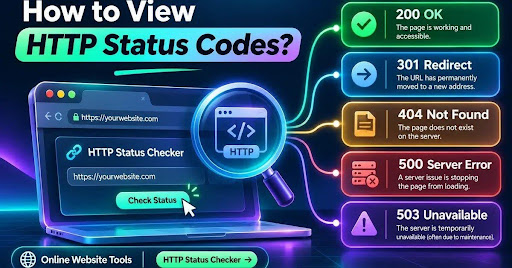
To view HTTP status codes, enter a URL into an online HTTP status checker, or open your browser’s developer tools and inspect the Network tab. You can also use curl in a terminal. The three-digit server response tells you if a page loads, redirects, is missing, or encounters an error.
Key Takeaways
- The fastest option is an online HTTP Status Checker. It requires no technical setup.
- Chrome DevTools shows response codes for individual page requests, including images, scripts, and APIs.
- curl displays response headers and status codes directly in the command line.
- Check both the original response and final URL when a redirect happens.
- An HTTP 200 response means the request succeeded, not that Google has indexed the page.
- Use real HTTP responses to investigate 404, 410, 429, and 5xx errors.
You may have seen “404 Not Found” in your browser, but every webpage request also has a status code when the server responds normally. A status code is useful for spotting broken links, evaluating redirects, and diagnosing crawl problems after website updates or migrations. Here is how to see the code rather than guessing from the appearance of a page.
What Is an HTTP Status Code?
An HTTP status code is a three-digit number returned by a web server in response to an HTTP request. It describes the outcome of that request, not the overall quality or SEO performance of the page. The number is part of the response metadata, which browsers usually hide from regular visitors. For example, a page that loads normally often responds with 200 OK, while a missing page commonly responds with 404 Not Found.
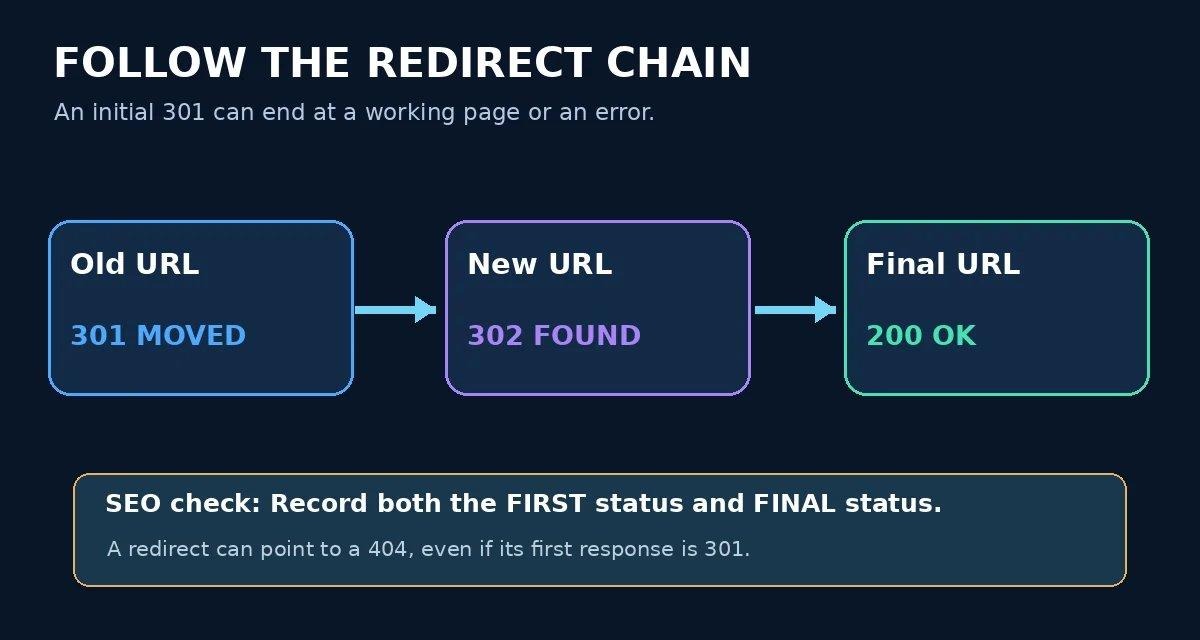
The five HTTP response classes, from 1xx informational responses to 5xx server errors
What Do the Five Status Code Groups Mean?
Informational
The server is continuing or informing the client about the request. You rarely need these for routine SEO audits.
Success
The request succeeded. 200 OK is the standard result for an accessible webpage.
Redirection
The client must take a further step or use a cached response. Examples include 301, 302, 307, 308, and 304.
Client Error
The request cannot be fulfilled, such as a missing page (404), forbidden resource (403), or rate limit (429).
Server Error
The server or upstream infrastructure failed to process the request, such as 500, 502, 503, or 504.
Method 1: View HTTP Status Codes Online (Fastest Way)
For a quick audit without opening developer tools, use the free Online Website Tools HTTP Status Checker. You can check up to 100 URLs per run and review their first response, redirect destinations, final status, response time, response headers, and a CSV report. The tool also provides a “Check as” option for requests. Results can differ depending on server security and the selected user-agent.
Open the free HTTP Status Checker
- Open the HTTP Status Checker and paste one URL per line.
- For multiple pages, paste up to 100 URLs, such as your homepage, important service pages, and older URLs from a migration.
- Choose if you want to follow redirects. Keep this enabled to inspect the final destination, but also review the first response.
- Choose the request identity in “Check as” if appropriate, then select “Check status codes.”
- Review the Status, Redirects, Final status, Time, and Size columns. Open a result to inspect response headers and the redirect chain.
- Export the CSV if you want to assign fixes or record the audit.
Example: A URL Says 301, but the Final Page Says 404
Imagine /old-product returns a 301 redirect to /new-product, but that destination no longer exists. The first status is 301, yet the final status is 404. A simple “redirect found” message can miss the real problem. This is why the full redirect chain matters in SEO checks.
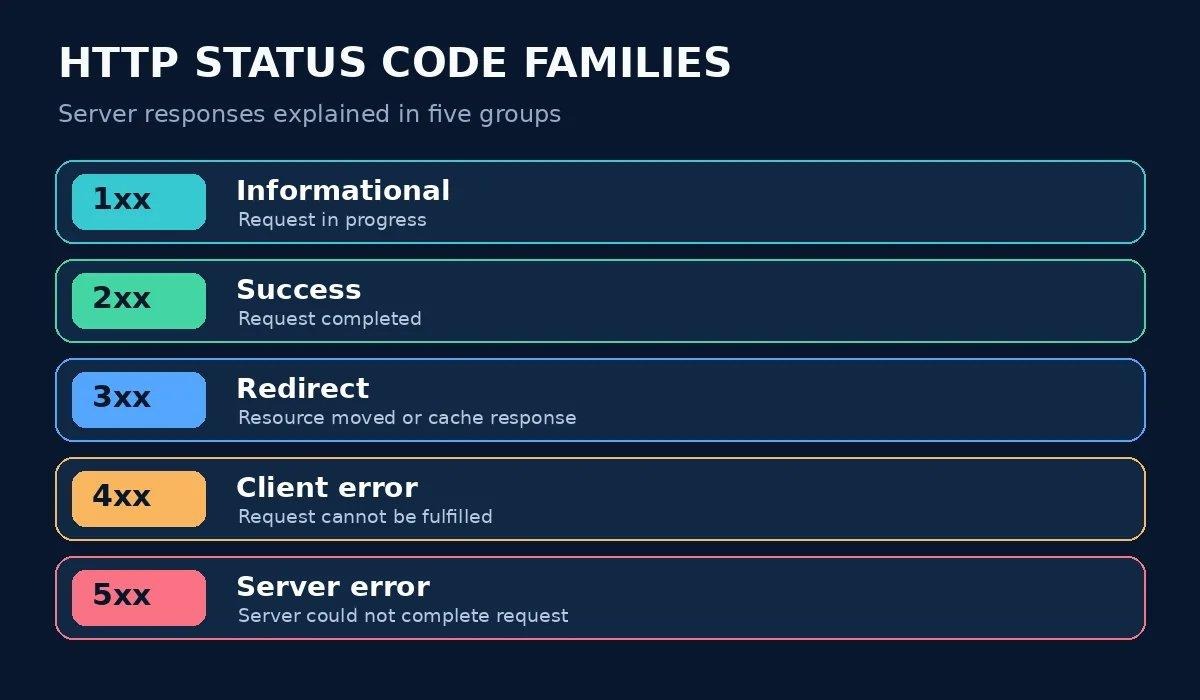
Illustration of a redirect chain, and why its first and final responses both matter
Before launching a migration or editing redirects, run your affected URL list through the free HTTP Status Checker to find redirects that lead to errors.
Check HTTP Status CodesMethod 2: Find HTTP Status Codes in Chrome DevTools
Chrome’s built-in Developer Tools are useful when you want to inspect what your own browser actually received. They also show separate requests for HTML, CSS, JavaScript, images, and APIs. This makes it possible to spot a failed resource even when the main HTML page returns 200.
- Open the webpage in Google Chrome.
- Right-click and select Inspect, or use
F12(on supported keyboards). - Open the Network panel. If needed, reload the page so requests appear.
- Select the main document request, usually labeled with the page name and Type “document.”
- Read the Status column, or open the request and look under Headers → General → Status Code.
- Use the filter or inspect separate image, script, and API requests to find any 404 or 500 results.
Why Might Chrome Show 200 While You Still See an Error Message?
The server can return HTTP 200 for an HTML page that visually says “Page not found.” This is called a soft 404 when Google detects it as an error page. Also, a webpage may load with 200 while an embedded resource fails with 404. Always inspect the specific request you are troubleshooting, not only the visible page.
Method 3: Check HTTP Status Codes Using curl
If you work in a terminal, curl can request the URL and show its response headers. This is useful for checking server behavior, testing deployments, and scripting checks.
View Just the Response Headers
curl -I https://example.com/pageThe output typically begins with a line such as HTTP/2 200. A HEAD request is used by -I, and some servers handle HEAD differently from GET. If the result looks inconsistent, compare it with a GET request.
Show Only the Status Code for a GET Request
curl -s -o /dev/null -w "%{http_code}\n" https://example.com/pageThis sends a GET request, discards the response body, and prints the HTTP status code. It is handy when you need one number without other information.
Follow Redirects and View the Final Status
curl -L -s -o /dev/null -w "Final status: %{http_code}\nFinal URL: %{url_effective}\n" https://example.com/old-pageWith -L, curl follows HTTP redirects. Without it, a check commonly reports the original 301 or 302 response. Use both approaches when you are diagnosing a redirect chain.
Method 4: Check Status Codes in Google Search Console
Google Search Console is not a general-purpose HTTP status checker for arbitrary domains. For verified properties, however, it helps diagnose how Google encountered indexing and crawling issues. Open Page indexing and inspect affected URLs such as Not found (404) and Server error (5xx). The URL Inspection tool provides information about Google’s indexed version and can request a live test for eligible URLs.
A code reported in Search Console may reflect an earlier crawl, while a fresh browser or checker request reflects what the server sends now. Compare them rather than expecting every result to match instantly.
HTTP Status Codes That Matter Most for SEO
| Code | Meaning | What to check |
|---|---|---|
| 200 | OK | Confirm correct content, canonical, and indexability. |
| 301 / 308 | Permanent redirect | Destination should work; update internal links. |
| 302 / 307 | Temporary redirect | Check if the move is genuinely temporary. |
| 304 | Not Modified | Normal conditional caching response; not a missing page. |
| 403 | Forbidden | Check access controls, firewall, and bot rules. |
| 404 | Not Found | Fix accidental 404s; legitimate removals can stay 404. |
| 410 | Gone | Appropriate for intentionally removed content. |
| 429 | Too Many Requests | Review rate limits and crawler access. |
| 500 | Internal Server Error | Review logs, plugins, application errors. |
| 502 / 503 / 504 | Gateway / unavailable / timeout | Investigate hosting and upstream failures. |
According to Google, persistent 5xx and 429 responses can reduce crawling, and URLs returning 4xx responses (except 429) generally cannot be indexed in Search. A successful 200 response only makes content eligible for further processing, not guaranteed indexing. See the official Google documentation in the sources section.
How to Interpret Common Status Code Results
Your Page Returns 200 but Is Not Indexed
First examine meta robots directives, robots.txt restrictions, canonical tags, content quality, and Google Search Console. HTTP 200 indicates a successful request; it does not confirm that Google selected the URL for indexing. You can use Online Website Tools’ Meta Tags Checker and Page Crawl Test for related checks.
Your Old URL Returns 301 or 302
Check the destination, the number of hops, and whether it produces 200 or another final result. Permanent moves typically use 301 or 308; temporary moves use 302 or 307. Avoid redirecting every deleted page to the homepage without a relevant replacement.
Your URL Returns 404 or 410
Ask if the page was intentionally removed. If it should still exist, restore it or redirect it to a relevant replacement. If it was intentionally retired, a proper 404 or 410 can be correct. Update internal links pointing to the missing page.
Your URL Returns 403, 429, or 5xx
Check firewall challenges, request limits, hosting logs, application errors, and CDN configuration. A third-party checker might receive 403 because the site blocks datacenter traffic; verify that actual visitors and legitimate crawlers can access the URL. A 503 may be appropriate for temporary maintenance, but prolonged failures can affect crawling.
6 Common Mistakes When Viewing HTTP Status Codes
- Confusing HTTP status code with page speed, Core Web Vitals, or SEO ranking.
- Checking only the final destination and ignoring the initial redirect.
- Assuming a browser-visible “404” message means the HTTP response is really 404.
- Treating every legitimate 404 as something that must redirect to the homepage.
- Assuming 200 OK guarantees that Google will index a URL.
- Comparing results without accounting for request method, user-agent, caching, or security rules.
When Should You Run a Bulk HTTP Status Check?
A bulk check is particularly useful after site migrations, URL slug edits, site redesigns, internal-link audits, publishing changes, or an unexpected spike in indexing errors. Start with priority pages: homepage, category pages, conversion pages, high-traffic blogs, sitemap URLs, and pages with valuable backlinks.
For regular site maintenance, export the checker’s CSV and group fixes by status. Review high-value 5xx and unintended 404s first, then validate redirect targets and update internal links. Do not assume that every status other than 200 is an error; 301, 304, and purposeful 404s can be expected.
Frequently Asked Questions
How do I view the HTTP status code of a website?
Paste the URL into an HTTP status checker or open Chrome DevTools, choose Network, reload the page, and inspect the main document request. Its Status field shows the server response.
Can I check HTTP status codes without developer tools?
Yes. Use a free online HTTP status code checker. Enter one or more URLs and read the returned response codes, redirects, and final destinations without installing software.
How do I see HTTP status codes in Chrome?
Open the page, press F12, select Network, and reload. Find the document request, then read its Status column or Headers tab. Different resources can have different codes.
How do I check a URL for 404 errors?
Use an online checker or curl to retrieve the status. If the URL returns 404, confirm the page is genuinely missing and inspect internal links that still point to it.
What is the difference between HTTP 301 and 302?
301 indicates a permanent move, while 302 indicates a temporary redirect. Search engines can follow both, but use the status that accurately describes your URL change.
Does HTTP 200 mean a page is indexed by Google?
No. HTTP 200 means the request succeeded. Google must still crawl, process, and decide to index the page. Use Search Console to investigate indexing status.
What is the difference between status and final status?
Status is the first response returned by the entered URL. Final status is the response after following any redirects. A URL might begin with 301 and finish with 404.
Can an HTTP status checker test multiple URLs?
Yes. Online Website Tools can test up to 100 URLs in one run and export the report as CSV. Check both first and final responses when redirects exist.
Why does an online tool return 403 when my browser opens the page?
Some security systems treat datacenter requests, user-agents, cookies, or IP addresses differently. A 403 from a checker does not prove visitors see the same result; compare request contexts.
Is a 404 always bad for SEO?
No. A legitimate 404 is a normal response for a removed or nonexistent page. Investigate 404s when valuable pages or internal links are affected, rather than redirecting all missing URLs.
Final Thoughts
The simplest way to view HTTP status codes is with an online checker. Chrome DevTools reveals what your browser requested, curl gives developers a fast command-line option, and Search Console adds Google’s crawl perspective. For SEO, interpreting the result matters as much as finding it. Always check the original code, follow the redirect chain, and confirm the final page works.
Ready to review your website? Use the free HTTP Status Checker to test individual pages or a batch of up to 100 URLs.
Check Your URLs Free